
Quote
The quote content type is very much "what you see is what you get". We have one place to enter the quote text and one place to enter an optional byline. We have no additional text styling controls such as line breaks or adding bold or italics.
In general, the Quote obeys the width of the column, however when placed inside of a 12-column, it will always display as centered and span 8-columns wide.
This quote is in a 6-wide column.
Typically, we would use quotes in the 12-column layout so there is room to breathe. We frequently receive very long quotes from authors, so they really need that visual space.
Related Links & Auto Related Links
The Auto Related Links content type is way to display peer through image and title for pages build on American Century's website. The benefits of utilizing this content type is that there are some opportunities for automation. If a web page title changes, for example, then we wouldn't have to track down all the places that web page appears in Related Links -- it would update automatically. Same for an image update.
The Related Links can display a maximum of 3 web pages. The Title Field is optional. The Related Links content types sits inside the "Layout > Section" content type. It does not need Grid or Column structural elements.
Learn More Display Type
Related Articles Display Type
Auto Related Links
The auto related links content type allows us to pull in the most recent articles overall, based on a set of article tags and/or by audience. If a article category is available in the insights hub, then we likely already have a content type built out for that article category and audience. If you are interested in multiple specific article categories to be served up with a webpage, we can accommodate that as well.
The audiences available are Individual Investor, Financial Advisor and Institutional Investor.
The URL string is what helps us control these variables. For example:
https://www.americancentury.com/insights/?categories=Estate+Planning%2CIncome&audience=Individual+Investor
Related Links & Auto Related Links on Light Green
Learn More Display Type
Related Articles Display Type
Related Links & Auto Related Links on Light Gray
Learn More Display Type
Related Articles Display Type
Related Links & Auto Related Links on Dark Green
Typically, we would not choose to do this without guidance from UXUI.
Learn More Display Type
Related Articles Display Type
Tab Set
The tab set is a very robust content type that can house almost all of our other content types. The tab set consist of two separate content types: Tab Set and Tab Contents. The Tab Set controls the optional title and groups together the Tab Contents. The Tab Contents controls the labels and contents inside the tabs.
The tab set will follow the column-width it is inside, though it is generally not recommended to go smaller than 6-columns wide.
This Field Is Optional
This is a Copy Block inside of a Column inside of a Grid inside of a Tab Content inside of a Tab Set inside of a Column inside of a Grid inside of a Section inside of the Template > Navbar with Content inside of Compose: Page.
Fun, right?

Below are some pages on the website today that employ tabs in a number of ways.
Quote
The quote content type is very much "what you see is what you get". We have one place to enter the quote text and one place to enter an optional byline. We have no additional text styling controls such as line breaks or adding bold or italics.
In general, the Quote obeys the width of the column, however when placed inside of a 12-column, it will always display as centered and span 8-columns wide.
This quote is in a 6-wide column.
Typically, we would use quotes in the 12-column layout so there is room to breathe. We frequently receive very long quotes from authors, so they really need that visual space.
This is a None background with icon and title. Text and background color selection are the only required fields. We can bold text, italicize text, superscript, link text and have bold link text.
- Lists also work
- Like this
- Or like this
- List item
This is a Light Gray background with icon and title. Text and background color selection are the only required fields. We can bold text, italicize text, superscript, link text and have bold link text.
- Lists also work
- Like this
- Or like this
- List item
This is to demonstrate how highlights behave when embedded into a copy block that is 12-columns wide. If we have a paragraph return between highlights, they display as separate entities. If we do not have a paragraph return between highlights, we can simulate a unified background without having to built an entirely new Section + Grid + Column combo. This helps up streamline the number of content types used for a build.
This is a None background with icon and title. Text and background color selection are the only required fields. We can bold text, italicize text, superscript, link text and have bold link text.
- Lists also work
- Like this
- Or like this
- List item
This is a Light Gray background with icon and title. Text and background color selection are the only required fields. We can bold text, italicize text, superscript, link text and have bold link text.
- Lists also work
- Like this
- Or like this
- List item
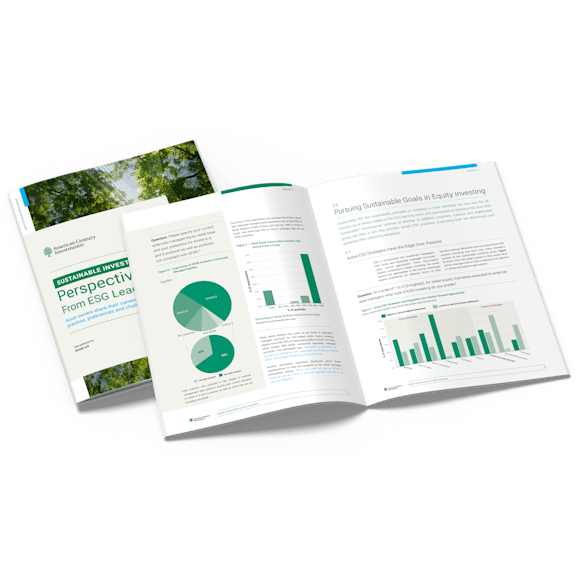
Dark Green with Image Right
This promo container has image display set to Right and an Image place inside first. The ordering of content types within a promo container is important.
Copy Block
The copy block is a humble content type, but is the functional back bone of many webpages. With the ability to style text, link text, embed tables, and embed a number of other content types the copy block is the content type we use the absolute most.
In copy blocks, we can embed Action, Disclosure, Factoid, Footnote, Highlight, Image, Markdown Content and Person content types. They also fit inside all column widths.
Available Heading and Text Styles
Heading 1
Heading 2
Heading 3
Heading 4
Heading 5
Heading 6
Bold
Italics
Not-SuperscriptSuperscript
We Can't Add Links to Headings
Bullet 1
Bullet 2
Bullet 3
Number 1
Number 2
Number 3
Tables in Copy Block: Default
Tables have limited controls in the copy block. What you see below is about all we can do.
Tables in Copy Block: Compare
This table display type was developed for the advice webpage. It can come in handy for tables that feature a lot of content but 3-5 columns. The styling is all automated.
Tables in Copy Block: Data
The data table style is for tables that feature a lot of data, but is limited on copy preferably. The column maximum for tables is 10.
Anywho... LOTS of content options within tabs!
The only thing we cannot do is place a Layout > Section inside of a tab.
This Field Is Optional
Templates
Template choice is an important decision when building a new webpage. Some back-end and/or front-end functionality may be dictated based on the template type you choose.
Below are the options for templates we have for American Century web pages.
Template > Article
The article template accounts for a majority of the web pages we build and continue to build on the website. In order for a page to appear on the insights hub, it must be built in the article template and begin its url with /insights.
Some key features of the template include article categories, audience tags, the author byline, and hero image. All remaining parts on the template are relatively flexible and can contain a number of robust design choices. However, in the spirit of streamlining article builds and limiting the number of content types, we generally keep layouts as slim as possible.
Template > Biography
The Biography template is used for ACI and Avantis employee biography pages. Generally, only Portfolio Managers and Executives have a biography page. The template is fairly straight forward with a place for the Person content type and a copy block. The templates use /bio for the beginning part of the url.
Template > General
This is the most basic of basic templates we have. It allows for full control over a majority of the content types we use for front end design. Most evergreen webpages utilize this content type.
Notable examples include:
Template > Homepage
The Homepage template is used sparingly to house landing pages for our main website as well as specific audiences. There are some key features of the homepage template that aren't available in other templates. The header style is unique to the homepage template. Additionally, there is a special Events section that only appears on this template.
Template > Index
This is a special type of template that requires partnership with IT to fully implement. Think of it as a tool to create webpages that use aggregation features like displaying the most recent press release first.
Pages that use this template include:
Template > Navbar with Content
This template is what is currently housing the content type library. It is a way to have secondary on-page navigation appear either across the top like tabs, or on the left side of the webpage like a list. To use this template, the content on the webpage must dictate its use.
Some examples include:
Template > Newsroom
Similar to the Article template, in order for a Press Release or News Coverage item to appear in the newsroom, it must be built with this template. A Press Release must also begin its url string with /newsroom.
News Coverage items are unique in that the are truly independent. They do not require a Compose: Page or Compose: SEO content type in order to populate on the newsroom webpage.
Template > No Nav/No Footer
Occasionally, we will need to build a web experience that removes our standard navigation and footer. These are usually specialty business collaborations and are relatively infrequent.
Template > Product
For Mutual Funds and ETF web pages, we use this template. A majority of the data displayed on product pages is funneled automatically through the help of this template. By assigning a fund code and making a few additional selections, most of the heavy lifting is then done by the code Dev has created.
We do have some control over the marketing content, disclosures and adding alerts as needed.
Template > Signin
This is another IT/Dev managed template. There is exactly one use case of it presently, and I bet you can guess which page. The Log In part is maintained by IT. The marketing copy on the right hand side is authorable by Web Ops.
Template > Strategy
Similar to the Product template, the Strategy template is instrumental in displaying automated data for Institutional Investor strategies. Additionally, in order for the template to work correctly, its url must begin with /institutional-investors/strategies.
Video
The video content type is connected to our video management service, Vidyard. Every video file we upload into Vidyard is assigned a unique code, known as a UUID. With this bit of information, we can hook the content type into Vidyard and display videos on a webpage.
We have a few additional controls with the Video content type, such as optional display title and short description. We can use a lightbox display or an inline display. In general, we recommend Lightbox display as that reduces the initial load time of a webpage.
We cannot remove the time code, as that is auto-populated by Contentful. We cannot make any alterations to the play button.

Lightbox Display with Optional Title
This caption field is also optional. We can add bold text, italicize or include a link.

Inline Display with Optional Title
Other
For documentation purposes, there are some additional content types you might see in Contentful. However, these are largely for specific use cases or unable to be displayed in a meaningful way.
Calculator
The Calculator content type is a drop-down list of available calculators we use from DinkyTown. This is a fixed list that Dev created and manage. Author controls are limited.
Chart
The Chart content type is used on Institutional Strategy pages. It populates the performance table for a given fund based on its EntityID. Author controls are limited.
Data > Display Component
The Data > Display Component is a series of radio buttons with selections pre-populated from Dev. It is a fixed list. This content type works to tie Product Page data into a tab to display. Author controls are limited.
Dynamic Content
There is only one content type of this presently. It triggers the display of the Extraordinary Performance Disclosure once a funds' performance is 25% or greater. This is a legal requirement. Author controls are limited.
iFrame
The iFrame was developed to facilitate the MyBlocks Tools program, which is a beneficial feature for clients in the Marstone/Digital Advice program. The content type currently only accepts MyBlocks urls. Author controls are limited.
Navigation > Link Set & Link
The Navigation > Link Set content type and Link content type work together to create link sets in the Template > Navbar with Content as well as in the global webpage navigation.
Navigation > Page Footer
No use cases at this time.
Navigation > Page Header
No use cases at this time.
Product List Page Footnote
The Product List Page Footnote content type allows disclosure footnote order and general maintenance of footnotes on the product list page to be managed by Web Ops. Web Ops has limited ability to do any additional authoring on this page.
Resource > Resource Item
The Resource > Resource Item content type allows the titles and secondary navigation links to work on Strategy pages that utilize the Template > Strategy. It is a fixed set of resources that Web Ops does not directly author or create.
Resource > Resource Set
No use cases at this time.
RTQ Recommendation
RTQ Recommendation content type was developed for the Risk Tolerance Questionnaire. At the end of the quiz, you are assigned one of five risk tolerances. Author controls are limited.
SFMC Form
The SFMC Form content type was developed for the Martone/Advice program. The contents of the form are hard coded and not authorable by Web Ops.
Static File
No use cases at this time.
Table
The Table content type is for use with the Strategy template only. It allows for data to be auto-populated in the the Strategy Facts table towards the top of the page. Author controls are limited.
Continue Exploring the Contentful Content Type Library
Last Updated May 2024. For internal use only.
For a more robust look at how Dev tries to break and test content types, check out Carmen Phu's Flexible Component's Test Page. The American Century ACDS is another great resource.